

LG Family Settings is a free, built-in feature on newer LG TVs. It lets you set a viewing time window, cap the volume and see a screen-time report, all on the TV with the remote. TV Parent is a separate phone app that does different things: it lets you lock the TV, approve apps and see what is on from your phone. For many families LG's settings are enough. This page helps you decide.
What LG Family Settings does well
Start with the good news, because it is real. LG's help pages describe Family Settings (found under Settings > All Settings > General on TVs from 2022, webOS 22) as having:
- A usage limit. You set a time window. Outside it, a password screen appears and the TV stays locked until the PIN is entered. If nobody types it within two minutes, the TV switches off.
- A volume limit. Volume is capped at 60, even if the button is held down.
- A screen time report. A daily or weekly graph of total use and use by app.
- Eye care mode. Reduces blue light.
It costs nothing, needs no extra app, no account and no Wi-Fi tricks, and it lives on the TV itself, so it works whoever is holding the remote. LG also has separate PIN locks for channels, programmes by age rating, apps and inputs. Our step-by-step guide to LG TV parental controls covers those.
One update to be aware of. LG says that from September 2026 a software update merged the older Family Care and lock settings into webOS Kids, a children's home screen with Allowed Time and Allowed Apps. Not every TV or region has it yet, so what you see may differ. Menu names change by model and webOS version, so treat the paths here as a guide.
Where people find LG's settings limiting
These are not faults. They follow from the settings living on the TV.
- You have to be in the room. Changing a rule means picking up the remote and going through the menus. Many parents do not even know the settings exist. In a survey by Virgin Media O2 and Internet Matters, 44% of parents said they did not know how to switch on safety settings.
- The rule is fixed. A time window is the same each day unless you change it. School nights and weekends can need different times.
- No middle ground. The TV is either allowed or locked. There is no "can I watch one more programme?" step.
- No live view. The report shows past use by app. It does not show what is on screen now.
- It covers the TV, not other devices. That is true of TV Parent too.
LG Family Settings vs TV Parent at a glance
| LG Family Settings | TV Parent | |
|---|---|---|
| Cost | Free, built in | Free to start. Pro £9.99 once. Plus £2.99 a month or £24.99 a year, with 7 days of Plus free |
| Where you set it up | On the TV, with the remote | On your Android phone |
| Works when you are away | Yes, the TV keeps the rule | Not yet: phone and TV must be on the same home Wi-Fi |
| Viewing time window | Yes | Yes, with a schedule, and the lock returns after switch-on (Pro) |
| Volume | Caps volume at 60 | Mute, set the level, and hold it (Pro) |
| Lock with a message on screen | PIN screen outside the time window | Lock with a message such as "Homework time" |
| Approve apps and inputs | App and input PIN locks | Per app and HDMI input: allowed, ask first or blocked |
| Ask first from the child's side | No | Yes, a request reaches your phone |
| See what is on now | No | Current app, plus screenshots and short clips (Plus) |
| Usage history | Daily and weekly report by app | Today's on-time (Free) and history for the last 60 days (Pro) |
| Send a message to the TV | No | Yes |
| Works on | LG TVs with the feature, set up per TV | LG webOS TVs, from an Android phone |
| Console | Input lock only | Can only set the TV's HDMI input to ask first or blocked |
If a cell says "No", that means we found nothing about it in LG's help pages. Features can change, so check your own TV.
Who should use which
LG Family Settings alone suits you if:
- the TV is in a family room or you are happy to set rules once and leave them;
- you want something free with nothing to install;
- a fixed daily time window and a volume cap are all you need.
TV Parent suits you if:
- you want to change things from your phone without going upstairs;
- you want to say yes or no when your child asks for an app, rather than a fixed block;
- you want to see what is on or look back over recent history;
- your rules change between school nights and weekends.
Using both is perfectly sensible. Set LG's PIN locks as a base layer on the TV, and use TV Parent for the day-to-day decisions. Experts and parents both say layered controls hold up better, because any one control can be beaten.
How TV Parent helps
TV Parent is an Android app for LG webOS TVs, coming soon to Google Play. We are not affiliated with LG and the app is not official.
- Lock the TV from your phone with a message on the screen.
- Ask first for apps and HDMI inputs: you decide yes or no from your phone.
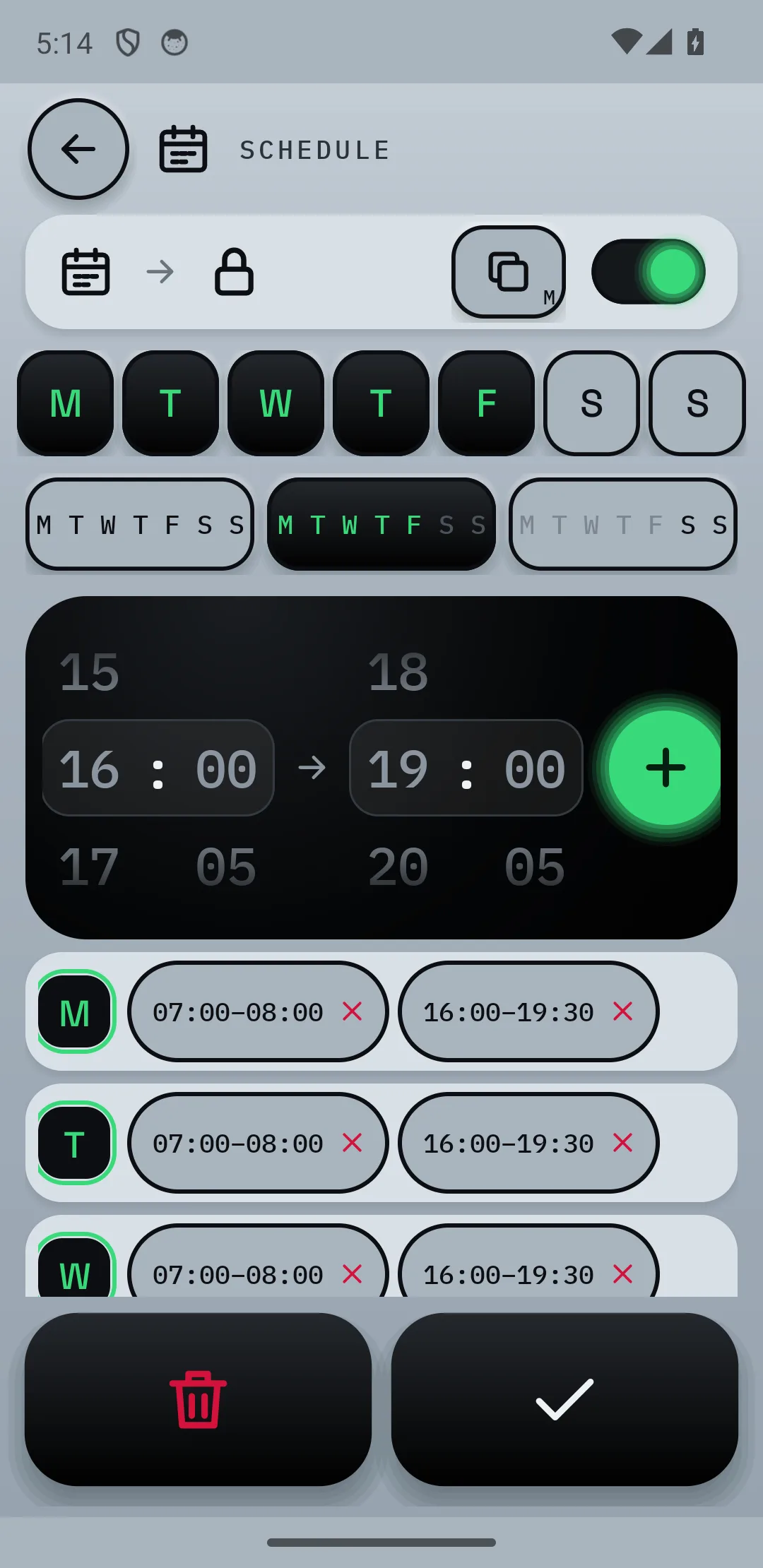
- Schedule different times for school nights and weekends.
- Hold the volume at a level you set.
- See what is on now, with a screenshot, and check history.
- Send a message such as "Five minutes left!" before the lock arrives.
The limits again: Android phones only, LG webOS TVs only, on the same home Wi-Fi as the phone. It cannot control a console itself, only the TV input the console is plugged into, and it cannot stop phones, tablets or laptops. See pricing or how we work.
Common questions
Does LG have a screen time limit on its TVs?
Yes, on newer models. LG's help pages describe a usage limit under Family Settings: you set a time window and a password screen appears outside it. It also has a volume limit and a screen-time report. Check your own TV, as menus vary by model.
Is LG Family Settings free?
Yes. It is built into the TV's software, with no extra cost or account.
Can I control LG Family Settings from my phone?
LG's help pages describe setting it up on the TV with the remote. We did not find a phone control for it. TV Parent is an app that does remote control from an Android phone, but it is a different set of controls rather than a remote for Family Settings.
Do I need TV Parent if the TV already has controls?
Not necessarily. If a fixed time window and PIN locks do the job, LG's settings are enough. TV Parent is for families who want to adjust things from their phone, approve apps case by case or see what is on.
Sources
- LG: how to use the Family Settings feature
- LG: Family Care function (webOS 22)
- LG help library: lock and unlock a webOS TV, including webOS Kids
- LG help library: TV parental control
- ISPreview: Virgin Media O2 on parental controls on new devices
- Defend Young Minds: how children get round parental controls