

To set parental controls on an LG TV, turn on the Safety (lock) setting with a PIN, then lock the things you want to protect: programmes by age rating, channels, apps and inputs. Newer LG TVs add Family Settings, which has a viewing time window, a volume limit and a screen-time report. It all happens on the TV with the remote, it is free, and it takes about ten minutes.
This guide walks through each step. A word of warning first: LG changes its menus from year to year, and the names differ by model and by webOS version (webOS is the software LG TVs run). If something below is not where we say, look through Settings > All Settings > General for words like Safety, Locks, Family Settings or Family Care. LG's own help pages say the same.
Step 1: Find the lock (Safety) setting
Everything else depends on this switch. LG's help library gives the path by webOS version:
- Press the Settings button on the remote (the cog).
- Choose All Settings, then General.
- Depending on your TV, open System > Safety (TVs from about 2021 to 2025), Safety (older TVs), or Usage Care > Family Care > Locks Control (the very newest TVs, webOS 26 and later).
- Turn the lock function On. The TV asks for a PIN.
If you have never set a PIN, LG's pages give the default as 0000. One LG page notes that the owner's manual is the place to check if that does not work, and that if it has been changed by someone else, LG Customer Support can help. Do not leave it at 0000. A child who has searched online will try it first.
Step 2: Change the PIN
On the same lock menu you will find a Reset PIN Code (or change password) option. Enter the current PIN, then choose a new four-digit one.
A few tips that help in real homes:
- Pick a number that is not a birthday, not 1234 and not the code for the front door.
- Do not type it where your child is standing behind the sofa. Watching the PIN go in is one of the most common ways children get past controls.
- Write it down somewhere other than the TV room.
Step 3: Lock programmes by age rating
Once the lock is on, you can block programmes above a certain age rating. Look inside the Safety menu for the rating lock. LG explains that this works by reading the rating that is sent along with a broadcast programme. Ratings differ by country, so the options you see depend on where you live.
Be honest with yourself about what this does. It works on live TV channels that send a rating. It does not rate what is inside a streaming app such as Netflix or YouTube. Those apps have their own settings, which is why the app lock in Step 5 matters.
Step 4: Lock individual channels
To lock a channel, open the channel list and use the lock key at the bottom of it. A locked channel shows a blank screen with the sound muted until the PIN is entered. LG notes that this only works while the Safety setting is switched on, so Step 1 comes first.
This is the quick fix for adult or late-night channels you simply do not want in a bedroom.
Step 5: Lock apps and inputs
In the same Safety menu you will find Application Locks and Input Locks:
- Open Application Locks and tick the apps that need a PIN to open. YouTube, a browser and any app with adult content are the usual candidates.
- Open Input Locks and choose any input, such as an HDMI port, that should ask for the PIN.
LG notes that a new lock does not take effect on an app that is already running, so close the app first. Locking an input is useful if a games console is plugged into the TV, because the console is then behind the PIN as well. Our guide on blocking YouTube on a smart TV goes into one app in more detail.
Step 6: Family Settings (newer LG TVs)
On TVs from 2022 onwards (webOS 22), LG's help pages describe Family Settings under Settings > All Settings > General. It has four parts:
- Usage limit. You set a time window for watching. Outside it, a password screen appears and the TV stays locked until the PIN is entered. If nobody enters it for two minutes, the TV switches itself off.
- Volume limit. The maximum volume is capped at 60, even if the volume button is held down.
- Screen time report. A daily or weekly graph of total TV use, and use app by app.
- Eye care mode. Reduces blue light.
The password is the same one you set in Step 1.
There is one more thing to know. LG says that from a software update starting in September 2026, it merged the older Family Care and lock settings into webOS Kids, a children's home screen. In webOS Kids you choose when it is active (Allowed Time) and which apps the child may open (Allowed Apps). To find it, press the More button on the Home screen or choose the LG Account icon. Different regions and models got this at different times, so you may still see the older menus. Both work the same way in spirit: you decide, on the TV, with the remote.
For a fuller side-by-side, see LG Family Settings vs TV Parent.
What LG's controls do not cover
LG's built-in tools are good, and free, but they have limits that parents tell us about. None of this is a criticism of LG. It is just how settings on a TV work.
- Everything is set up on the TV with the remote. You cannot change a rule from the kitchen, from work, or when you are away.
- The rule is fixed until you go back and change it. There is no easy "ten more minutes, then off".
- There is no warning before the lock arrives, so the cut-off can feel sudden and start an argument.
- The screen time report shows use by app after the fact. It does not show you what is on the screen right now.
- It covers the TV only. It cannot stop a phone, tablet or laptop.
How TV Parent helps
TV Parent is an Android app for LG webOS TVs, coming soon to Google Play. It does not replace the settings above. It sits on top of them and puts the controls on your phone. We are not affiliated with LG, and the app is not official LG software.
- Lock the TV from your phone with a message such as "Homework time", and unlock it when you choose.
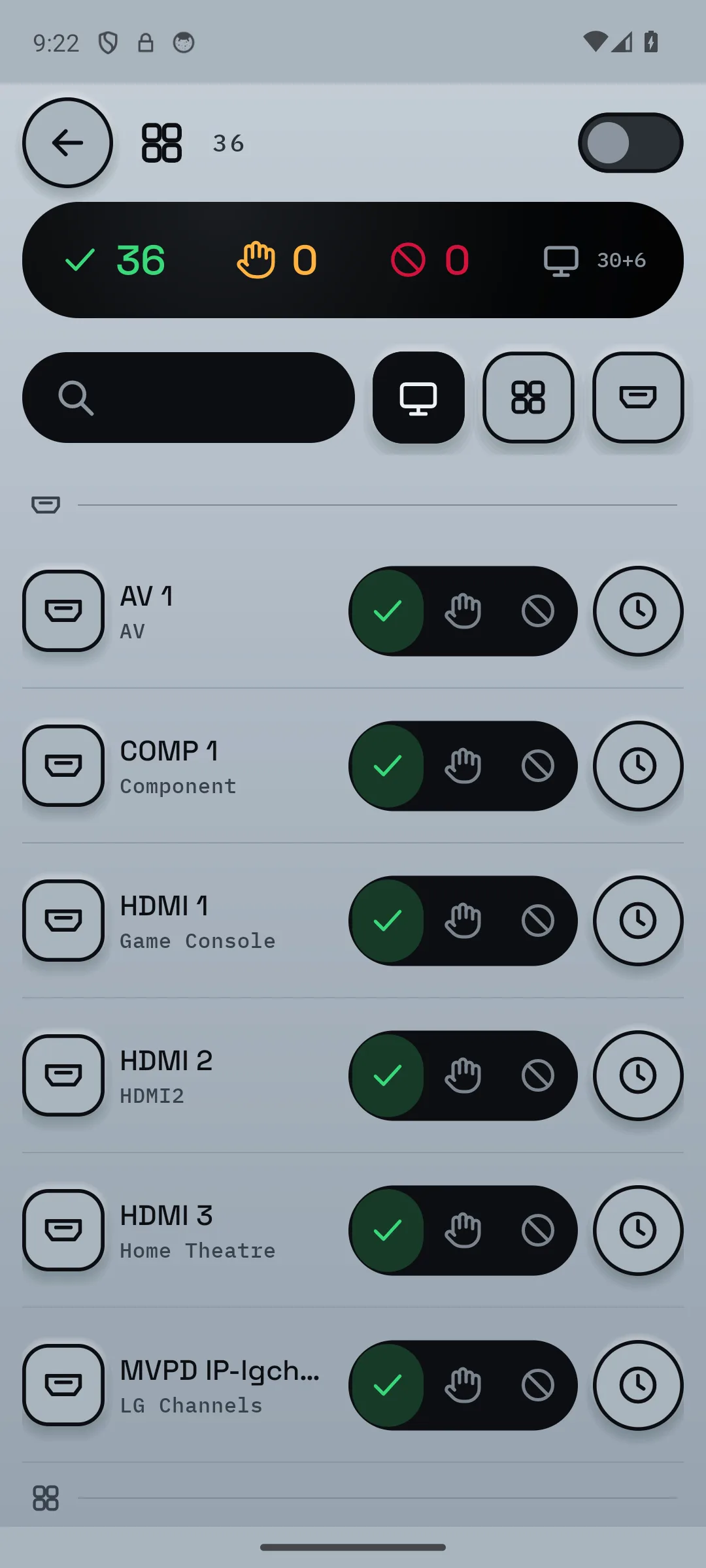
- Ask first lets you set each app and HDMI input to allowed, ask first or blocked. When the child opens one that asks first, you get a request on your phone and say yes or no.
- See what is on with the current app and a screenshot, and check recent history.
- Send a message to the TV screen, such as "Tea in 5!".
- Set a schedule for school nights and weekends, so bedtime happens by itself.
- Hold the volume at a level you choose.
What it cannot do: it works with Android phones and LG webOS TVs only. Your phone and the TV must be on the same home Wi-Fi, so it does not work when you are out and about yet. It cannot control a console itself, only the TV input the console uses, which you can set to ask first or blocked. And it cannot stop phones, tablets or laptops. Pricing is on the pricing section: free to start, Pro at £9.99 once, or Plus at £2.99 a month or £24.99 a year, with 7 days of Plus free.
Common questions
What is the default PIN on an LG TV?
LG's help pages give the default as 0000. Some LG pages say to check the owner's manual, and that if 0000 no longer works then someone has changed it. In that case LG Customer Support can help. Whatever it is, change it as soon as you have turned the lock on.
How do I lock apps on an LG TV?
Turn on the Safety setting first, then open Application Locks (Settings > All Settings > General > System > Safety on most 2021 to 2025 models) and choose the apps. Menu names vary by model, so look for Safety or Locks under General if the path is different on yours.
Does LG have parental controls for streaming apps like Netflix?
LG's locks can put a PIN on opening an app, but they do not change what is inside the app. For that you need each app's own controls, such as Netflix profile PINs.
Can I set LG TV parental controls from my phone?
LG's built-in settings are made on the TV with the remote. An app such as TV Parent lets you lock the TV and approve apps from your phone, while you are on the same home Wi-Fi.
What if my child knows the PIN?
Change it, and avoid typing it where they can see. Layering controls is wise, because any single control can be beaten. A child can also switch to another input, so lock inputs too.