

Lock the TV
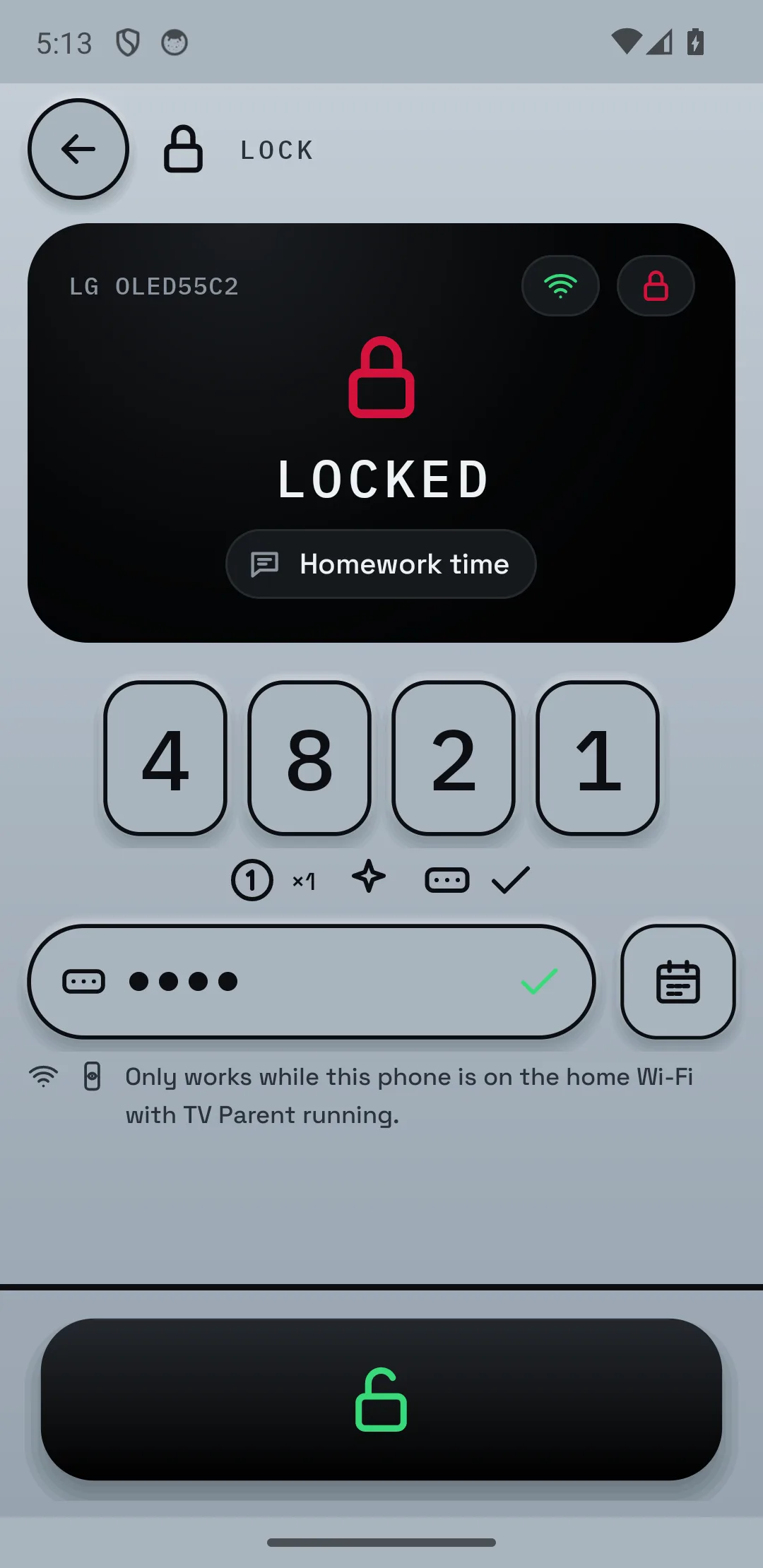
One tap puts a full-screen message on the TV ("Homework time"). It only unlocks with your PIN, or from your phone.
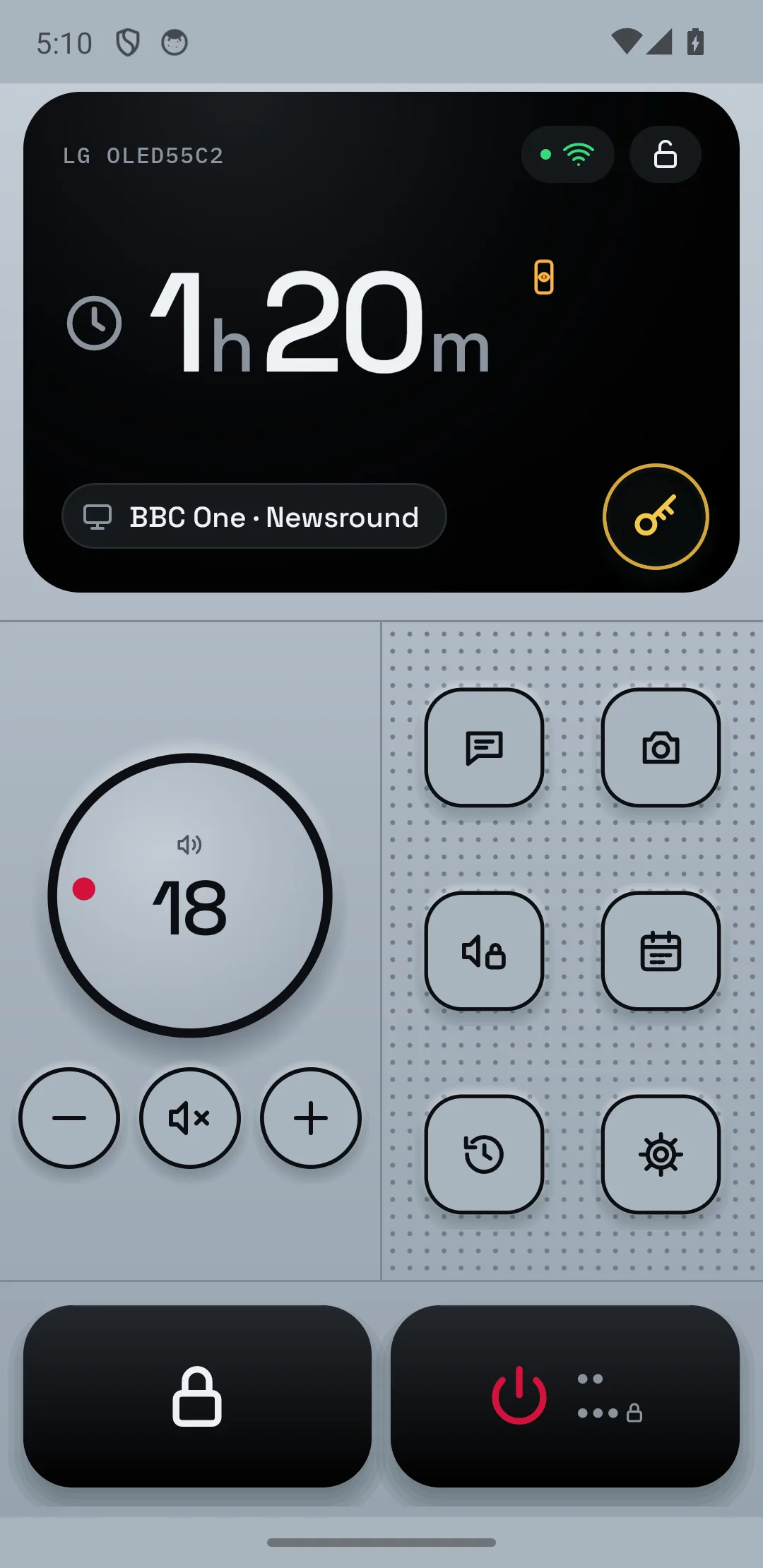
See it working →TV Parent turns your phone into the parent's remote. Lock the TV, set schedules, cap the volume, and decide which apps and games consoles they can use. Nothing to install on the TV.
No hacking
Nothing to install on the TV
Your data stays on your phone
A TV in a child's room with no controls, or no idea what they are watching? TV Parent turns your Android phone into the remote for your LG TV and covers it.
One tap puts a full-screen message on the TV ("Homework time"). It only unlocks with your PIN, or from your phone.
See it working →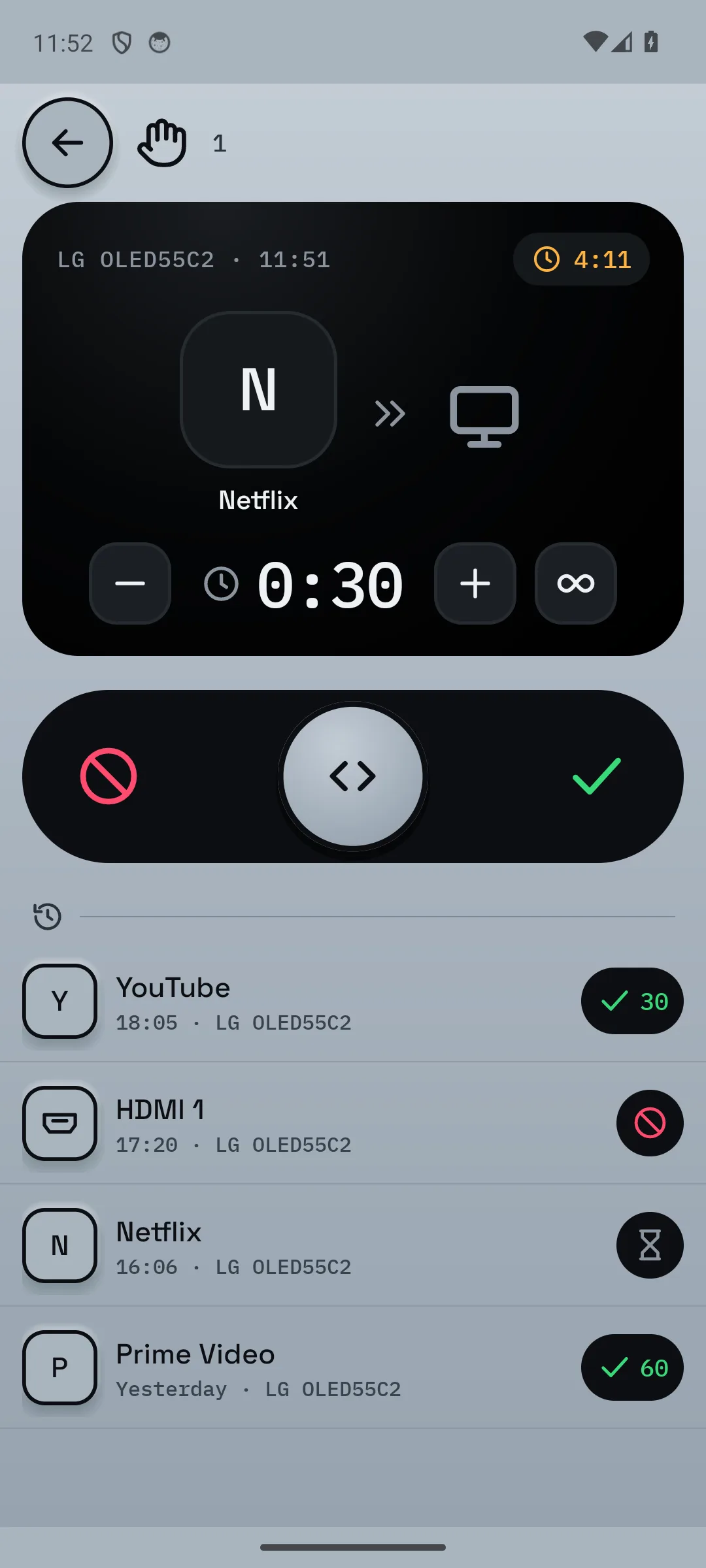
YouTube, Netflix, Disney+ or the games console on HDMI: set each one to allowed, ask first or blocked. When they try it, the TV asks you and your phone gets the alert. You say yes or no.
See it working →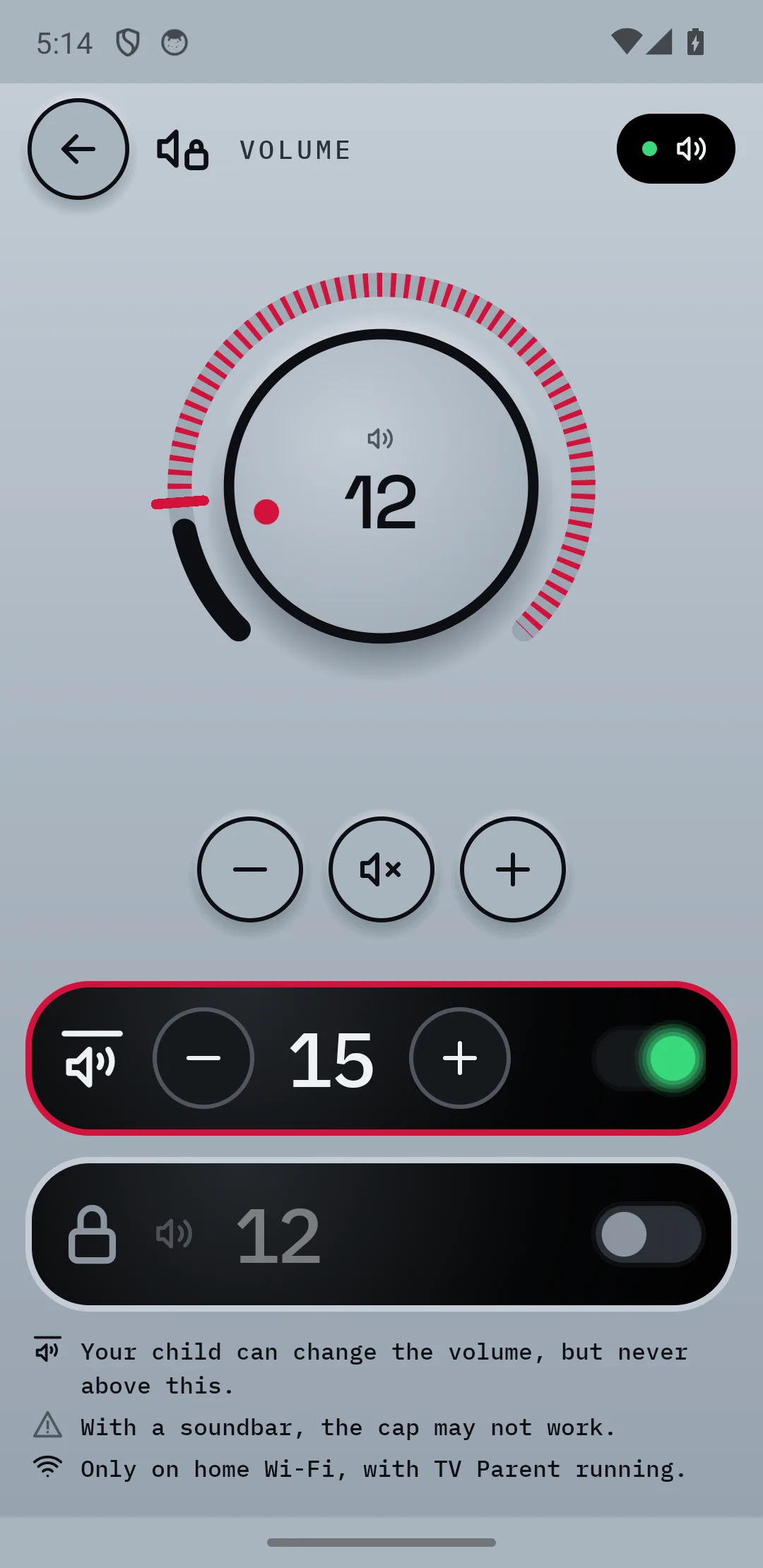
Set the loudest the TV can go, or hold it at one level so it cannot be changed.
See it working →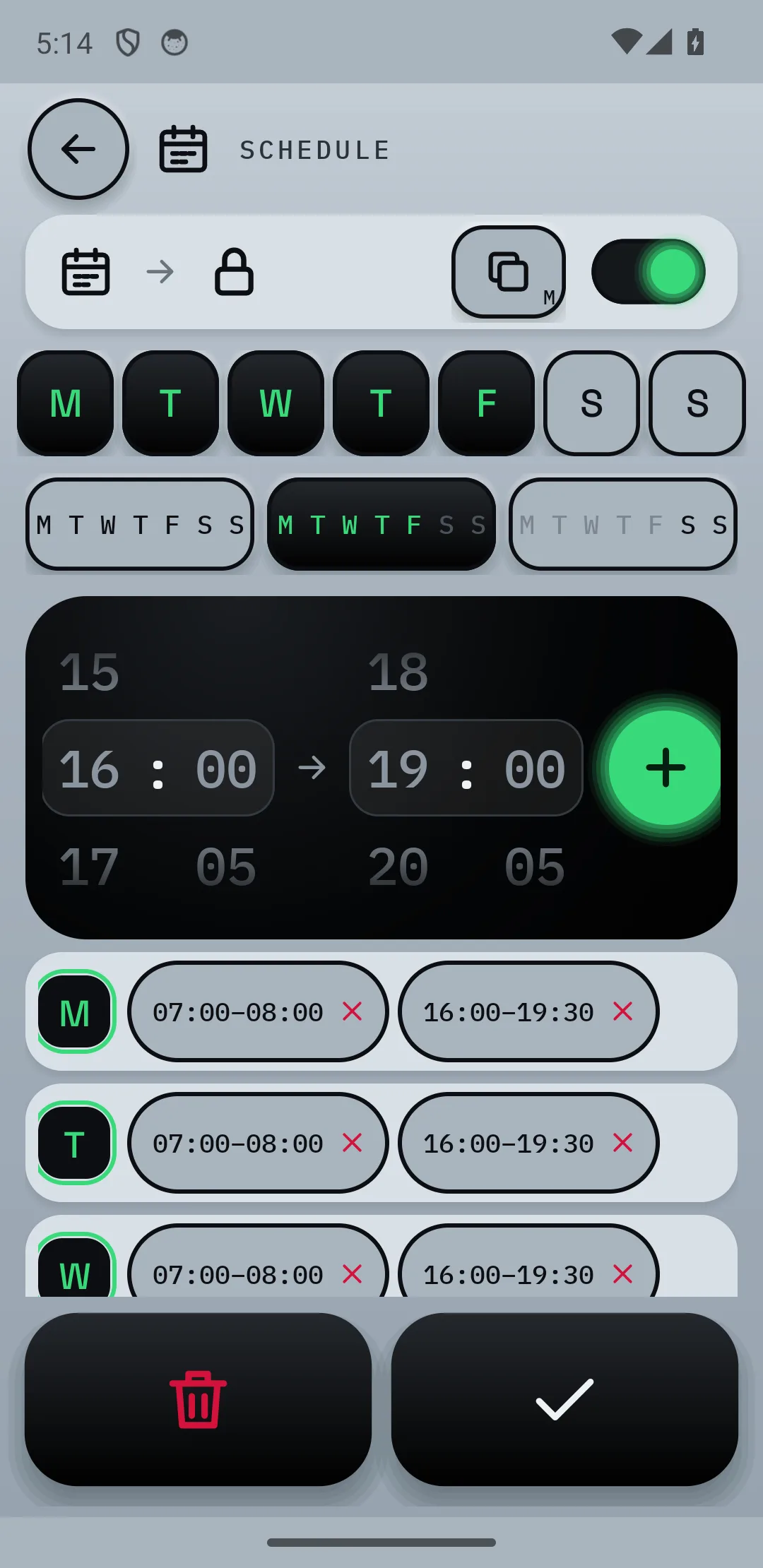
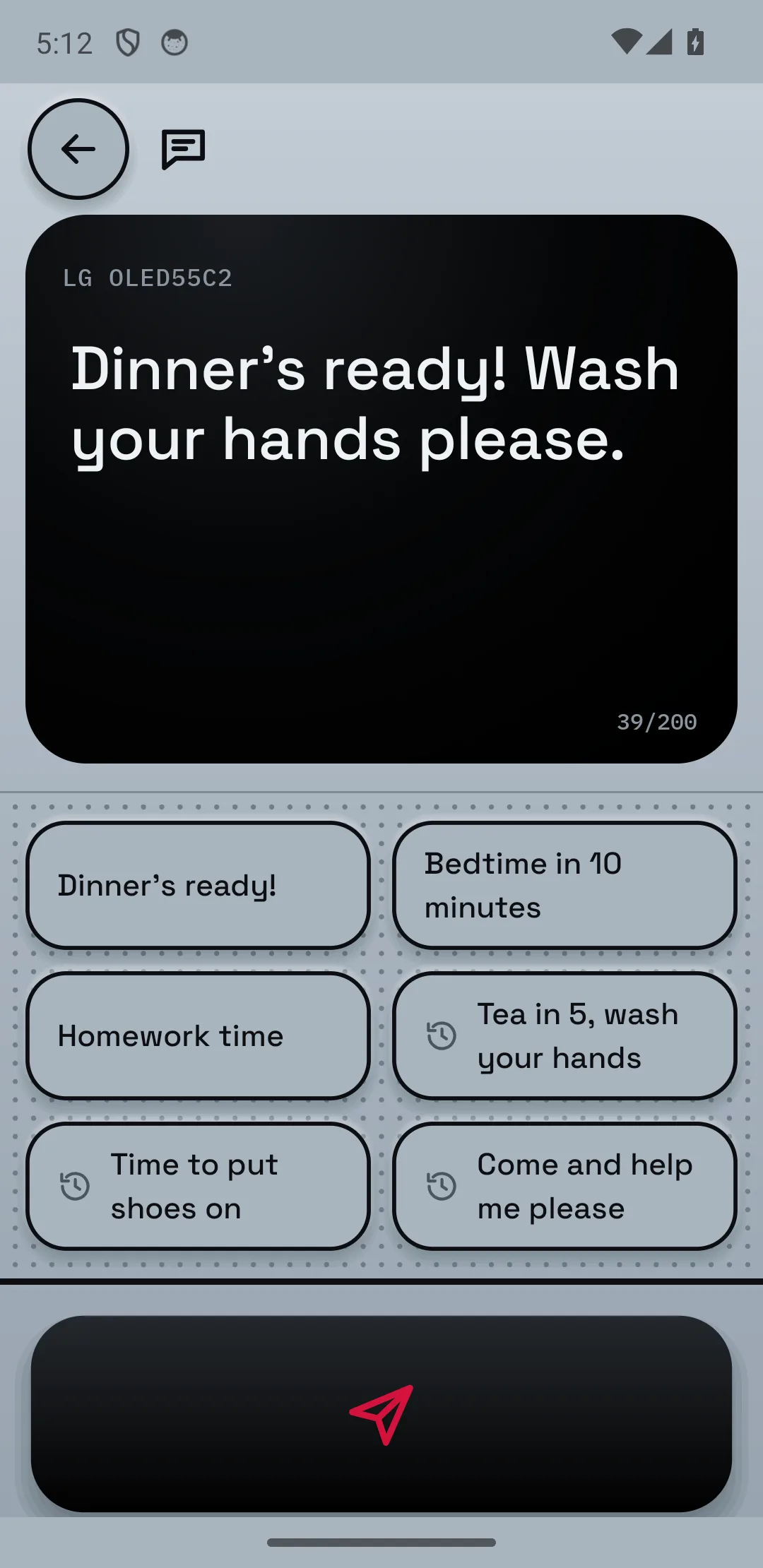
"Dinner's ready! Wash your hands please." Type it on your phone and it pops up on the TV screen.
See it working →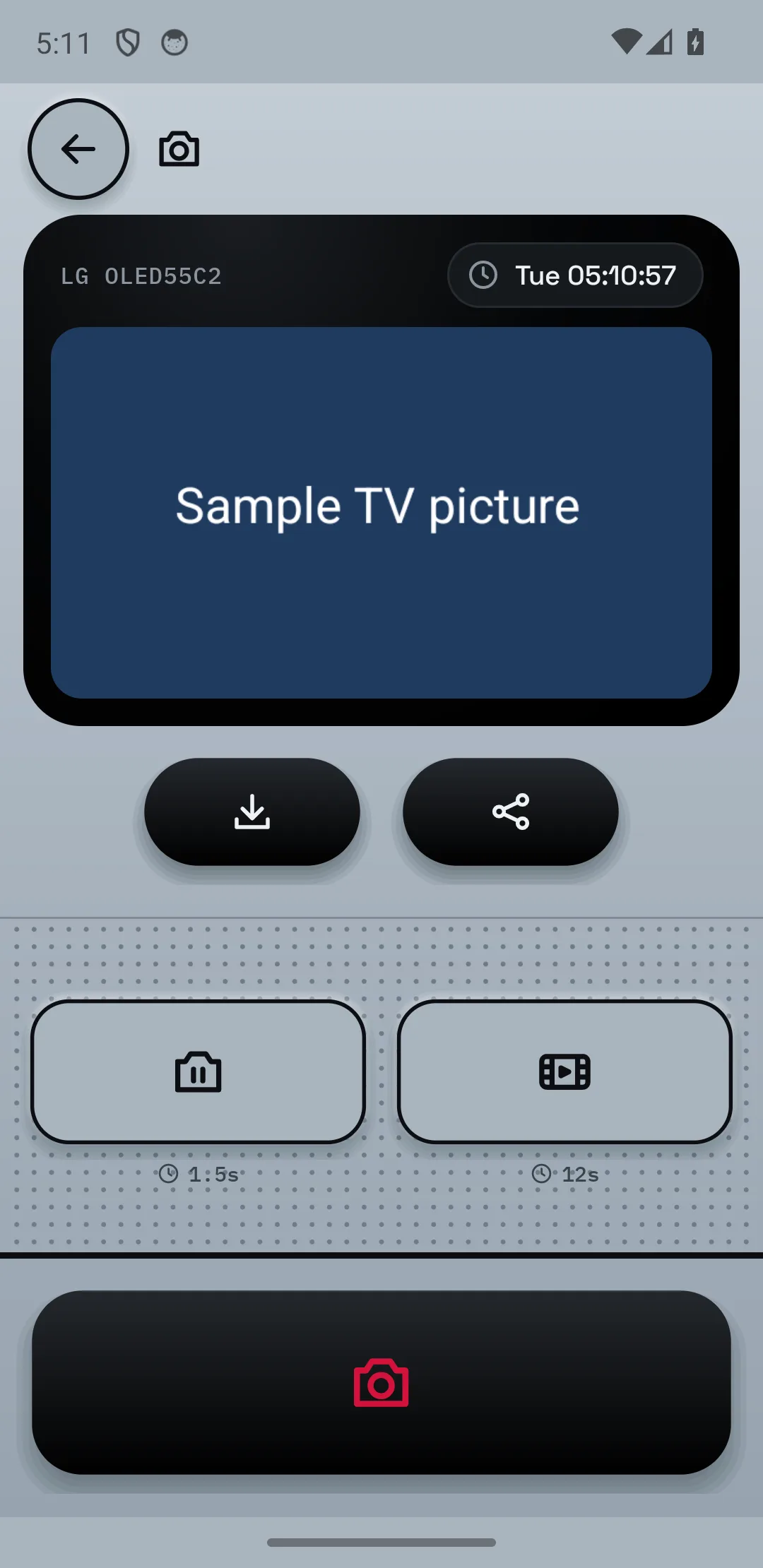
Take a screenshot of the TV from your phone, and look back at what was watched and for how long.
See it working →The TV does the talking. When a rule kicks in, your children get a clear, friendly screen that says what is happening, and you stay in charge from your phone.
Step 1 of 4
They pick Netflix. Netflix is set to "ask first", so the TV stops and shows it is asking you. The sound is off and nothing plays while they wait.
Nothing to install on the TV. No box, no hacking.
The app finds your LG TV on your home Wi-Fi and links to it.
Lock, schedule, cap the volume and choose which apps need your OK.
Every new user gets 7 days of Plus free. Cancel any time in the 7 days and nothing is charged.
£0
Try it out, light use
£9.99once
Full control, no monthly bill
£2.99a month
or £24.99 a year (about 30% off)
Paid through Google Play. Pro is never charged twice: Plus subscribers pay only the subscription.
Straight answers to the questions parents ask about TVs in bedrooms, bedtime and screen time.
Buying a TV for a child's bedroom this Christmas? What to check before you buy: parental controls, LG Family Settings, volume limits, size and safe mounting.
7 min read →What actually works when a child keeps watching TV after bedtime: agreed rules, timers, LG settings, smart plugs and a schedule, and where each one fails.
6 min read →How much screen time is normal for a 10-year-old? What the AAP and UK paediatricians say, why quality beats hours, and rules of thumb by age.
6 min read →How to limit TV until homework is done and make the rule stick: a simple routine, what the research says, and how to lock the TV from your phone.
5 min read →How to get a child off the Xbox or games console without a meltdown: what experts suggest, fair warnings, and how TV Parent helps with the TV.
5 min read →How to see what your child is watching on the TV: app watch histories, LG's screen-time report, and what TV Parent adds. Honest options for parents.
5 min read →LG smart TVs running webOS, on the same home Wi-Fi as your phone. One TV at a time to start.
Not yet. TV Parent is Android only for now.
TV Parent cannot control an Xbox or PlayStation itself, but it controls the TV: switch the console's HDMI input to "ask first" and nothing plays until you agree in the app.
No. You press YES on the TV once to allow the app, and that is it.
Not yet. Your phone and the TV need to be on the same home Wi-Fi.
Yes. TV Parent is an Android app that links to your LG smart TV (webOS) over your home Wi-Fi. From your phone you can lock the TV with a message, set schedules, limit the volume, choose which apps and inputs are allowed, and turn the TV off. It works when your phone and the TV are on the same Wi-Fi, not yet when you are out.
Newer LG TVs have Family Settings, set up on the TV itself, with a viewing time window, a volume limit and a usage report. TV Parent adds control from your phone, a "ask first" step for apps and consoles, messages that pop up on the screen, and a look at what is on. It is not made by or affiliated with LG.
Yes. Set schedules for school nights, weekends, bedtime or homework time, and the TV locks automatically with a full-screen message. It unlocks with your PIN or from your phone.
Yes. Plus lets you take a screenshot of the TV from your phone, and the app keeps a viewing history for the last 60 days, showing what was watched and for how long.
There is a Free version. Pro is a one-off £9.99. Plus is £2.99 a month or £24.99 a year, and new users get 7 days of Plus free. TV Parent is coming soon to Google Play and is not available to download yet.
Honestly, a determined child may try. The TV unlocks only with your PIN, and on Pro the lock returns after the TV is switched off and on again. But TV Parent controls the TV, not a phone, laptop or tablet that is not the TV.
Everything stays on your phone. No accounts, no adverts, no tracking. Read the privacy policy for the details.