

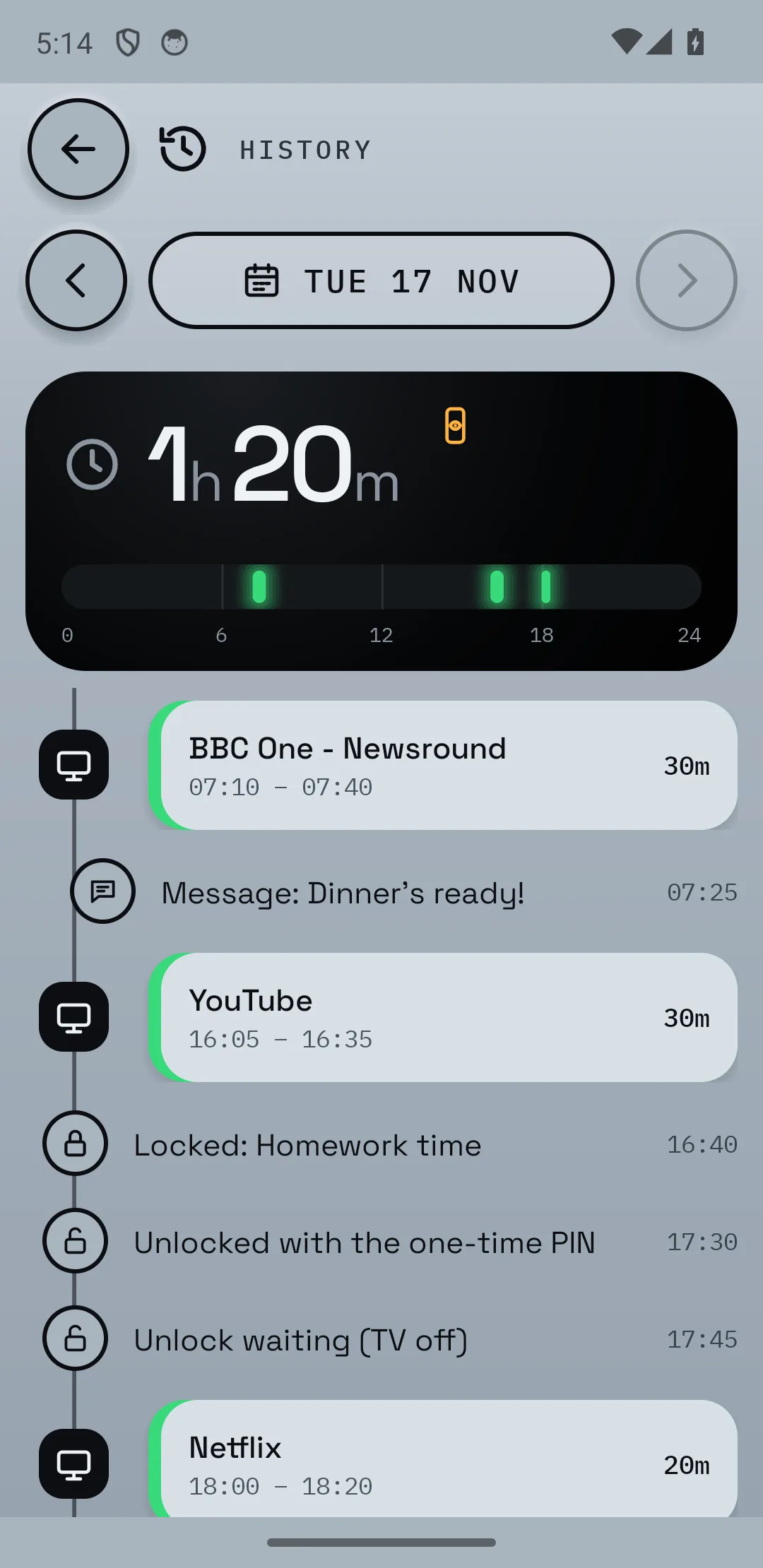
To see what your child is watching on TV, check the watch history inside each app (Netflix, YouTube and so on), look at the screen-time report in your TV's own settings if it has one, or use an app that shows you the TV itself. No single method covers everything, so most families end up combining two of them.
Most of the advice online is written for phones. TVs are different. They have several apps, several profiles and often a closed bedroom door. This guide covers the honest options, what each one misses, and how to bring up the subject with your child without it feeling like spying.
Why it is harder to see what your child watches on a TV
Parents tell us the same things again and again:
- Each app keeps its own history, so there is no single place to look.
- Children can delete a watch history, or they watch in a profile you never check.
- The picture changes the moment someone opens the door.
- You can only check by going upstairs.
There is also a bigger gap. In research by Virgin Media O2 and Internet Matters, 44% of parents did not know how to switch on safety settings. Internet Matters' own tracker found that more than half of parents know controls exist, but fewer than a third use them. That is not a failing on your part. The settings are scattered and different on every device.
Option 1: Check the watch history in each app
This is free and worth doing, but it has limits.
| App | What you can usually do | The catch |
|---|---|---|
| Netflix | Each profile has its own viewing history. Netflix suggests a PIN on every adult profile, so a child on a Kids profile can't switch to yours | Only shows what happened in the profiles you look at |
| YouTube | Look at the watch history of the account that was signed in | Children can delete history, or watch signed out or on a different account |
| Other apps | Most have a "continue watching" or history list somewhere | Different in each app, and some have none |
Two habits make this more reliable. First, put a PIN on every adult profile, so your own viewing is not the back door. Second, check the history together now and then, rather than in secret. See our YouTube on a smart TV guide for the YouTube side in more detail.
Option 2: Use your TV's own screen-time report
Newer LG TVs (2022 onwards) have Family Settings, which include a daily and weekly screen-time report by app. If you have one of these TVs, it is worth a look. It tells you which apps were used and for how long.
Two things to know. It is set up on the TV itself, so you need to be in the room. And an app-by-app total is not the same as seeing what was actually on. We compare it with TV Parent in LG Family Settings vs TV Parent, and the basics are in LG TV parental controls.
Option 3: See the TV itself from your phone
TV Parent is an Android app for LG smart TVs. It shows you what the TV is doing without you having to climb the stairs:
- What's on now. Open the app and see which app or channel is playing on the TV right now.
- A picture of the screen. With the Plus plan you can take a screenshot of the TV at any moment.
- History. With Pro you can look back over the last 60 days of what was on and for how long. The free plan shows today's on-time.
One honest note about pictures. Streaming apps protect their own content, so a picture of a paid streaming app can't be saved or shared from TV Parent. Some apps also come out black in screenshots. You can still see what is on, but you can't keep the image.
Because it works on the TV rather than inside one app, deleted app histories and unused profiles don't hide anything from it. It also does not need your child's phone or accounts.
Talk to your child about it first
Checking what a child watches can feel like a trust issue, so it helps to be open. A few ideas:
- Tell them that you can see what is on the TV, and why. Surprises tend to cause more rows than rules.
- Agree what you will look at and when, for example a quick check when something seems off, not a daily inspection.
- Ask what they like watching. You will often learn more from a chat than from a history.
- Say that the aim is to keep them safe, not to catch them out.
How TV Parent helps
TV Parent is an Android app for LG TVs, coming soon to Google Play. Your phone and the TV need to be on the same home Wi-Fi. For this topic it gives you:
- See what's on now, plus the TV's on-time for today, on the free plan.
- A screenshot of the TV with Plus (£2.99 a month or £24.99 a year, with 7 days free to try it).
- The full 60-day viewing history with Pro (£9.99, paid once). See the pricing.
- Ask first for apps and inputs, so your child has to ask before something opens.
- A message to the TV, so you can say "Dinner's ready" without shouting up the stairs.
It works with LG webOS TVs only, and it cannot see what happens on a phone, tablet or laptop.
Common questions
How do I see what my child watched on the TV last night?
Look in each app's watch history first, and check your LG TV's screen-time report if it is a 2022 or newer model. With TV Parent Pro, the history shows what was on and for how long over the last 60 days, which helps when an app history has been deleted.
Can my child delete the history so I can't see it?
In most apps, yes. That is one of the main reasons parents say app histories are not reliable. A history kept by TV Parent is recorded on your phone, not in your child's profile.
Is it okay to check what my child watches?
Most parents feel it is part of looking after a child, especially a younger one. The kindest way is to be open about it, explain why, and agree what you will check. As children get older, the balance should shift towards trust and conversation.
Can I see what my child watches on their phone this way?
No. TV Parent only covers the LG TV. Phones, tablets and laptops need their own controls.