

To block YouTube on a smart TV, put a PIN lock on the YouTube app in the TV's own settings. On an LG TV that is Application Locks under the Safety menu. If you would rather keep YouTube but tame it, turn off autoplay, check which account is signed in, and use YouTube Kids for younger children. There is no general daily time limit inside the YouTube TV app, so the TV is where limits have to come from.
YouTube is the app parents tell us about most. It is free, it never runs out, and it is good for plenty of things, from craft tutorials to football highlights. The trouble is how easily one video becomes twenty. This guide explains what to watch for and what you can do about it.
What parents need to know about YouTube on the TV
Autoplay keeps it going. When one video ends, the next starts. That is what turns "one quick video" into an hour. Google's help pages say you can switch autoplay off in the YouTube app's settings on a TV, and that on supervised accounts a parent's choice can hide the option from the child.
Shorts are hard to avoid. Common Sense Media says Shorts, the short vertical videos, can still show up for a child watching YouTube on a smart TV or games console, even when their own supervised account has limits. Shorts cannot be switched off completely, and they still turn up through search and recommendations.
The wrong account. If the TV is signed in to a parent's account, the child gets the parent's recommendations and watch history. Children can also work out how to add an account of their own or use another route in. Common Sense Media warns that settings such as Restricted Mode must be set on each device, and in each place you use YouTube.
No daily limit on the TV app. Parents can turn autoplay down, shape what is shown or block the app entirely. We could not find a general daily time limit for the YouTube app on a TV. Family Link, Google's free parental-control app, can set bedtime and break reminders for supervised accounts, but those are phone-first tools. They are not a simple "one hour a day on the living-room screen".
YouTube Kids is gentler, but different. Common Sense Media recommends YouTube Kids for children aged 12 and under. A parent sets a PIN, creates a profile by age band, can block videos and channels and can turn search off. It is a better fit than the main YouTube app for younger children. The catch is that it is another app, and a child who finds the main YouTube app on the TV can still open it.
Option 1: Keep YouTube, but make it calmer
Google's help pages describe these settings. Exact menus vary by TV and app version, so look for similar names if yours differ.
- Open the YouTube app on the TV and go to Settings.
- Find Autoplay and set it to Off.
- On Android TV and Google TV, go to Apps, choose YouTube, then Settings, and look for Restricted Mode (called Safe Mode on some versions). Google says this only applies to that one device.
- Check which account is signed in, and sign out of your own if you do not want your child using it.
- For a younger child, consider YouTube Kids instead, with its own PIN.
Restricted Mode filters out some content but is not perfect. Google does not claim that it catches everything, and neither should we.
Option 2: Block YouTube on an LG TV
If you want YouTube off in the bedroom altogether, LG's own lock is the simplest route. LG's help library gives this path for TVs from 2021 to 2025:
- Press Settings on the remote, then All Settings > General > System > Safety.
- Turn the Safety setting On and set your PIN. LG lists the default as 0000, so change it.
- Open Application Locks and choose YouTube.
On the very newest TVs (webOS 26 and later) LG lists the lock menu as Usage Care > Family Care > Locks Control instead, and older TVs have a shorter path. LG also says a September 2026 update moved some of this into webOS Kids, where you choose Allowed Apps. Names vary by model, so look for Safety or Locks under General. Close the app before locking it, because LG says a new lock does not apply to an app already running. Our full LG parental controls guide has the rest.
Two things to be aware of. A locked app asks for the PIN, so the PIN needs to stay private. And YouTube can still be reached on another device: a phone, a tablet, a games console or a streaming stick on an HDMI input. If you lock the app on the TV, lock any spare input too.
Option 3: Ask first, from your phone
Blocking is black and white. Many parents want a middle: "yes, for half an hour, after your homework." That is where a phone app helps.
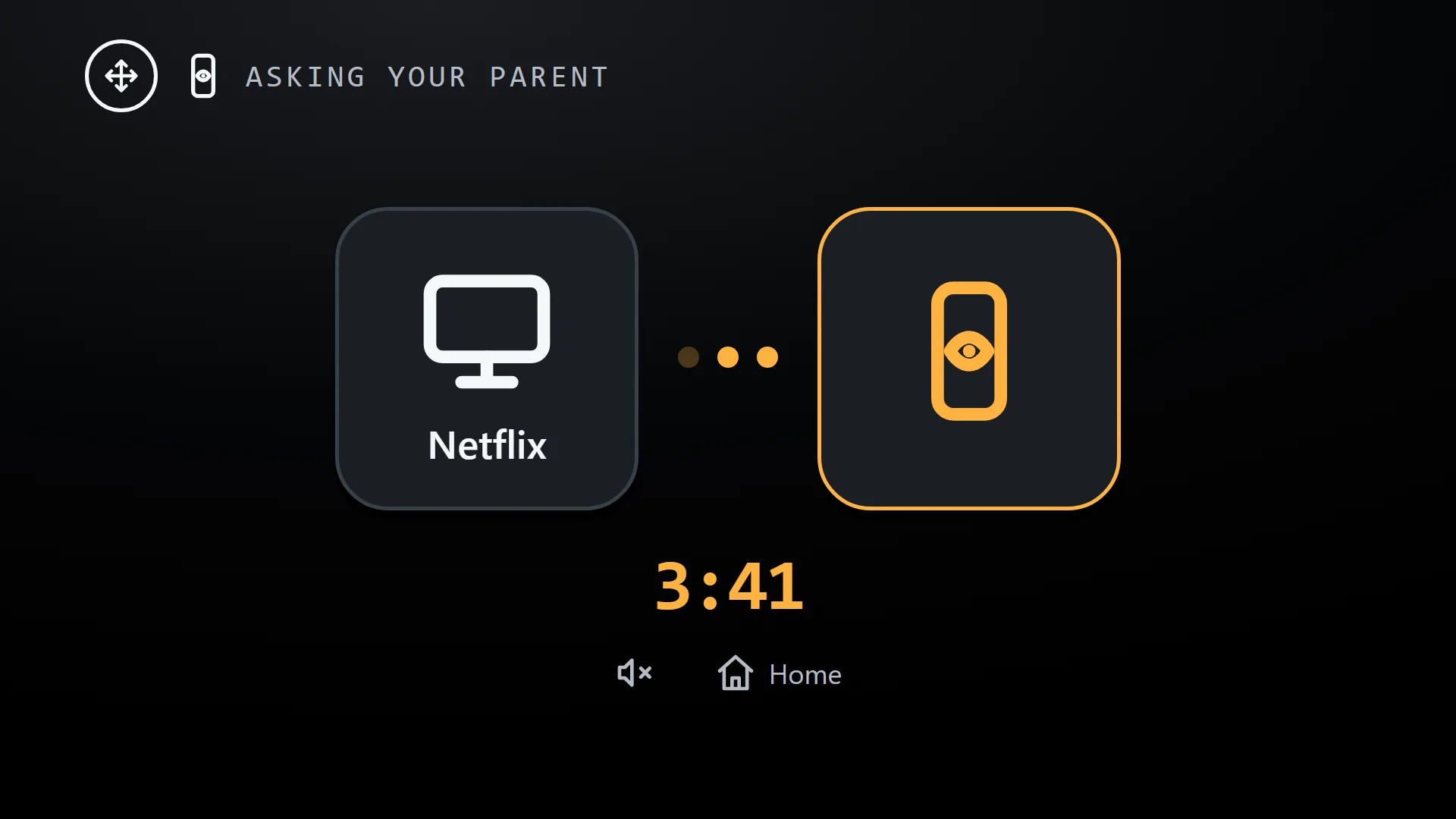
With TV Parent, you mark YouTube as allowed, ask first or blocked. If it is ask first, the child opens YouTube and sees a message that you have been asked. You get a request on your phone and say yes or no. The child hears from you, not from a lock screen, which tends to help with the arguments. You can also see which app is on, and send a message such as "Five minutes left!" before the lock arrives.
How TV Parent helps
TV Parent is an Android app for LG webOS TVs, coming soon to Google Play. We are not affiliated with LG or Google, and it is not official software from either.
- Ask first for YouTube and any other app: you decide from your phone, or mark it blocked.
- See what is on with the current app and a screenshot, plus recent history, so you know where the time went.
- Lock the TV with a message, for dinner or homework.
- Send a message to the screen before time is up.
- Schedule times when apps are off, such as school nights.
What it cannot do: it works from Android phones with LG webOS TVs, on the same home Wi-Fi, so not when you are out yet. It cannot see inside YouTube or change YouTube's own settings. It does not give a time limit inside the app, only on whether the app can be opened. It also cannot stop YouTube on phones, tablets or laptops. See pricing: free to start, Pro £9.99 once, Plus £2.99 a month or £24.99 a year, with 7 days of Plus free.
Common questions
How do I block YouTube on a smart TV?
Put a PIN lock on the YouTube app using the TV's settings. On an LG TV, turn on the Safety setting, then open Application Locks and choose YouTube. Other brands have a similar app lock, often under Settings > General or Parental Controls.
Can I set a time limit on YouTube on the TV?
Not inside the YouTube TV app that we could find. Options are turning autoplay off, using Family Link bedtimes for a supervised account, using a TV-wide time window such as LG's Family Settings, or a phone app that can lock the TV or ask first. See our LG Family Settings comparison.
Is YouTube Kids safe on a TV?
It is designed for children and has parent controls, including a PIN, block lists and search off. Common Sense Media recommends it for ages 12 and under. No filter is perfect, so check in from time to time. On a TV, it is also worth locking the main YouTube app so the child cannot switch to it.
Why does my child keep watching YouTube after I turn autoplay off?
Autoplay is only one thing. Recommendations on the home screen and Shorts still tempt a child to carry on. Setting a clear stop time, or using ask first, usually works better than a single setting.
Can I see what my child watched on YouTube on the TV?
It depends on whether they are signed in, and children can delete history. A way to see what is on at the moment is more reliable. See our guide on seeing what your child watches on TV.
Sources
- Common Sense Media: parents' ultimate guide to YouTube parental controls
- YouTube Help: autoplay videos
- YouTube Help: turn Restricted Mode on or off (Android)
- YouTube Kids help
- LG help library: TV parental control
- LG help library: lock and unlock a webOS TV, including webOS Kids
- Kidslox: smart TV parental controls